Contents
- Index
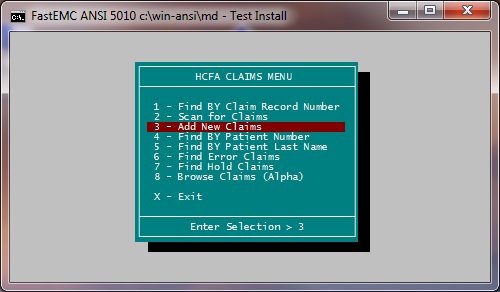
1- Add/Change Claims
 }
}
This option allows you to enter new claims or change claims previously entered.
To select this option, press [1] (Daily Operations) from the HCFA FastEMC menu and [1] (Add/Change Claims) from the Daily Operations menu.
1. FIND BY Claim Record Number
This option allows the user to find a claim by providing a record number.
*Record numbers can be found in bottom right corner of each claim and on the summary report before you create.
2. SCAN for Claims
3. ADD NEW Claims
This option allows the user to add claims for transmission, when appropriate.
4. FIND BY Patient Number
This option allows the user to find the patient's account number.
5. FIND BY Patient's Last Name
This option allows the user to find the patient's claims by last name. If an exact match is not found, a "fuzzy" search may be performed for misspelled names.
6. FIND Error Claims
This option allows the user to find all claims that contain errors. Displays the first claim in the claims file with an error. The [ENTER] key can be used to display the next claim.
7. FIND Hold Claims
This option allows the user to find all claims placed on HOLD. Displays the first claim in the claims file with an "H" status. The [ENTER] key can be used to display the next claim.
8. BROWSE Claims (Alpha)
This option allows the user to browse through all claims in patient last name sequence.
From this menu option the user may:
Press [ENTER] to select a claim.
Press [D] to delete a claim.
Press [H] to put a claim on hold.
Press [V] to view additional data on a claim.
Press [R] to resubmit a claim in created status.
Press [C] to clear a hold status.
Press [Q] to put a claim in paper only status.