Contents
- Index
System Setup (Screen 2)
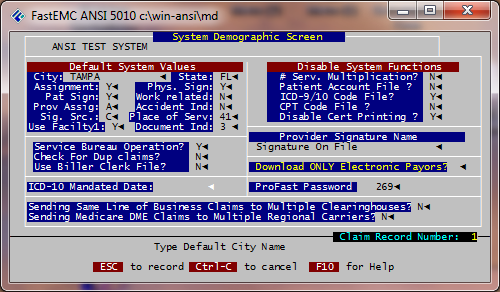
Default System Values
The system provides the ability to set certain default values in order to expedite claims entry.
City
Enter the default city. When entering the patient information on the claim, if the City is left blank, the system will supply the default City value when [ENTER] is pressed.
State
Enter the default state. When entering the patient information on the claim, if the State is left blank, the system will supply the default State value when [ENTER] is pressed.
Assignment
Enter the default Assignment value. Enter [Y], if authorizing payment to the provider the majority of the time. Enter [N], if NOT authorizing payment to the provider the majority of the time.
Physicians Signature
Enter default signature [Y] or [N]
Patient Signature
Enter [Y], if the patient's signature is on file. Enter [N], if the patient's signature is NOT on file.
Work Related
Enter [Y], if services are related to the patient's employment. Enter [N], if services are NOT related to the patient's employment.
Provider Assignment
Enter the default provider assignment: [A] to accept or [N] to non-accept
Accident Indicator
Enter the default accident indicator [Y] or [N]
Signature Source
Enter the patient signature source [B], [C], [M], or [P] - see instructions at bottom of screen
Disable System Functions - defaults to "N"
The system provides the ability to disable certain features on particular needs. # Services Multiplication ? Press [Y] to disable the multiplication of the number of services times the procedure amount.
Patient Account File?
Press [Y] to disable the retention of patient demographic information during claim entry.
ICD-9 Code File?
Press [Y] to disable the ability to store and validate ICD-9 codes.
CPT Code File?
Press [Y], to disable the ability to store and validate CPT codes.
Disable Cert Printing?
Press [Y] to turn off print question after each cert that is entered.
Service Bureau
Press [Y] if you are a Service Bureau (Billing Service). All provider information will be pulled from the individual provider files. May also use if you are a practice type 1.
Check for dup claims?
Press [Y], if the user wants to check the claims file for duplicates. If you use [Y] be aware that you not be able to retype previously entered claims.
Submission Type
System will default to "ASY" by entering past this field.
Test/Prod
Enter [Test] or [Prod] = Production, to indicate the status of claims being submitted.
Provider Signature Name - defaulted
Profast Password
If you purchased FastEMC Total Cycle, put in the assigned password issued by FastEMC.
Download only electronic payers?
Leave blank
Press [ESC] to record information.
Note: A DME Default Screen will appear if you answered [2] or [3] to the DME question in the System Setup. Fill in appropriate information.